Squarespace sites look polished, and that makes it easy to assume they work for everyone. Do they? We took one of Squarespace's own template demos, the Bedford template, and ran a full accessibility audit on it before changing a single thing.
The result: a score of 68 out of 100 and 110 issues on 8 of 8 pages. None were critical, but 75 were serious, and most of them came from the template itself rather than from anything a site owner typed. Here is what we found, who each problem affects and how to fix it in Squarespace.
Key takeaways
- Squarespace gives you a solid base, but a template is not automatically accessible. The Bedford demo had 110 automated issues on 8 pages.
- The biggest problem was colour contrast: 32 pieces of text too faint to read comfortably, including the main "Learn more" button.
- 17 links and buttons showed no visible change when reached with the Tab key, so keyboard users lose their place.
- Quick fixes could solve 61 of the 110 issues without touching the site's content. Most of the rest need a change in Site Styles or in the editor.
- Automated checks find many problems, not all of them. A few things always need a person to judge.
In this article
How we tested
We used CoreA11y for Squarespace on the public Bedford demo site that Squarespace shows to people choosing a template. CoreA11y read the site's sitemap and picked 8 pages, one of each kind: the home page, an events list, a single event, a gallery, a blog-style list, a single item and the search page.
Each page was checked against WCAG 2.2 level AA, the standard most accessibility laws point to, at both desktop and phone width. The checks run in a real browser, so they see the page exactly as a visitor does, including menus and content added by JavaScript.
We didn't edit anything first. Every result below comes from the template as Squarespace ships it, with its demo text and images.
The results at a glance
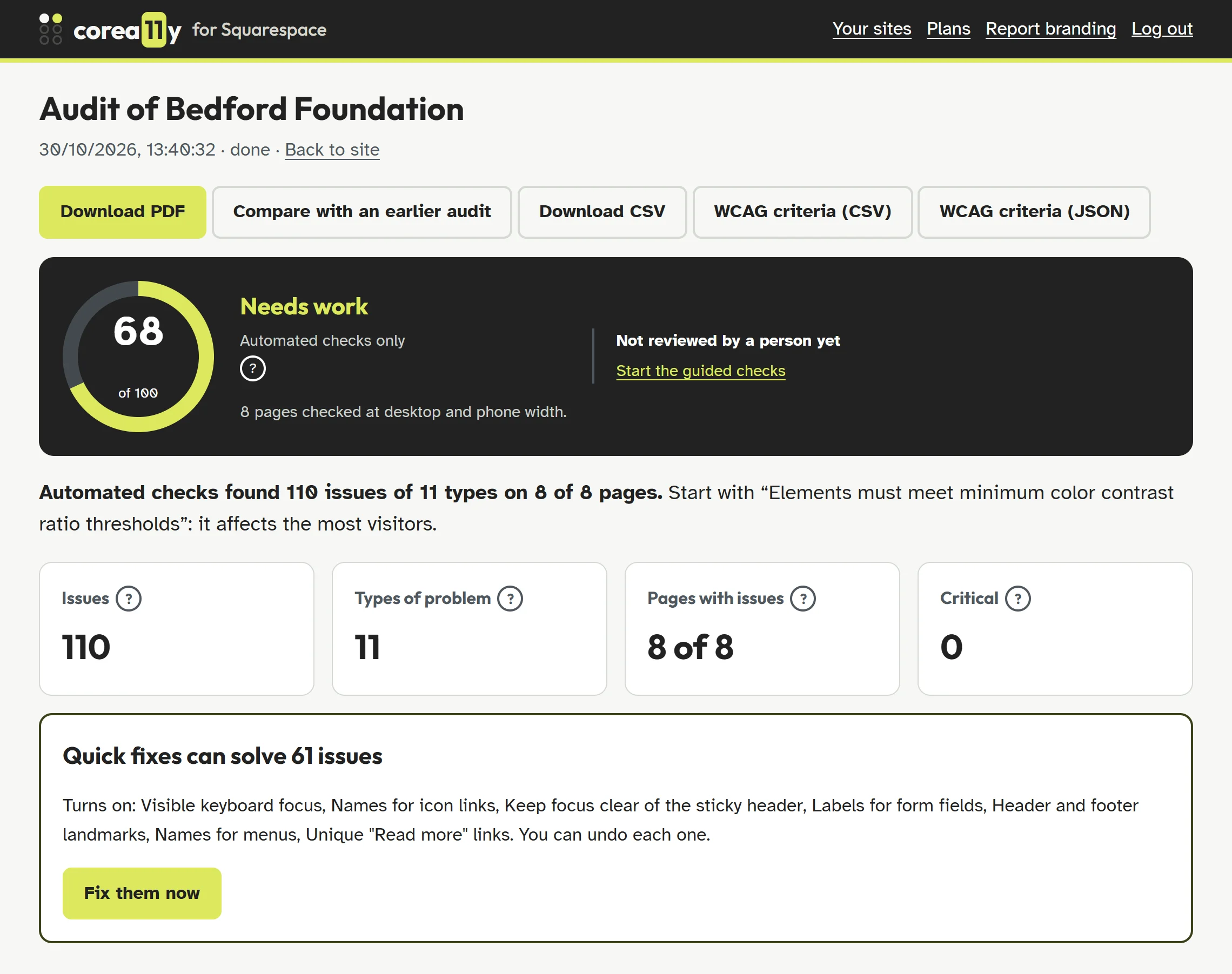
A score of 68 isn't a disaster, and zero critical issues is good news: nothing completely blocks a visitor. But the problems repeat on every page, because most of them live in the template's header, footer and colour theme. Fix them once and every page improves.
The six problems that matter most
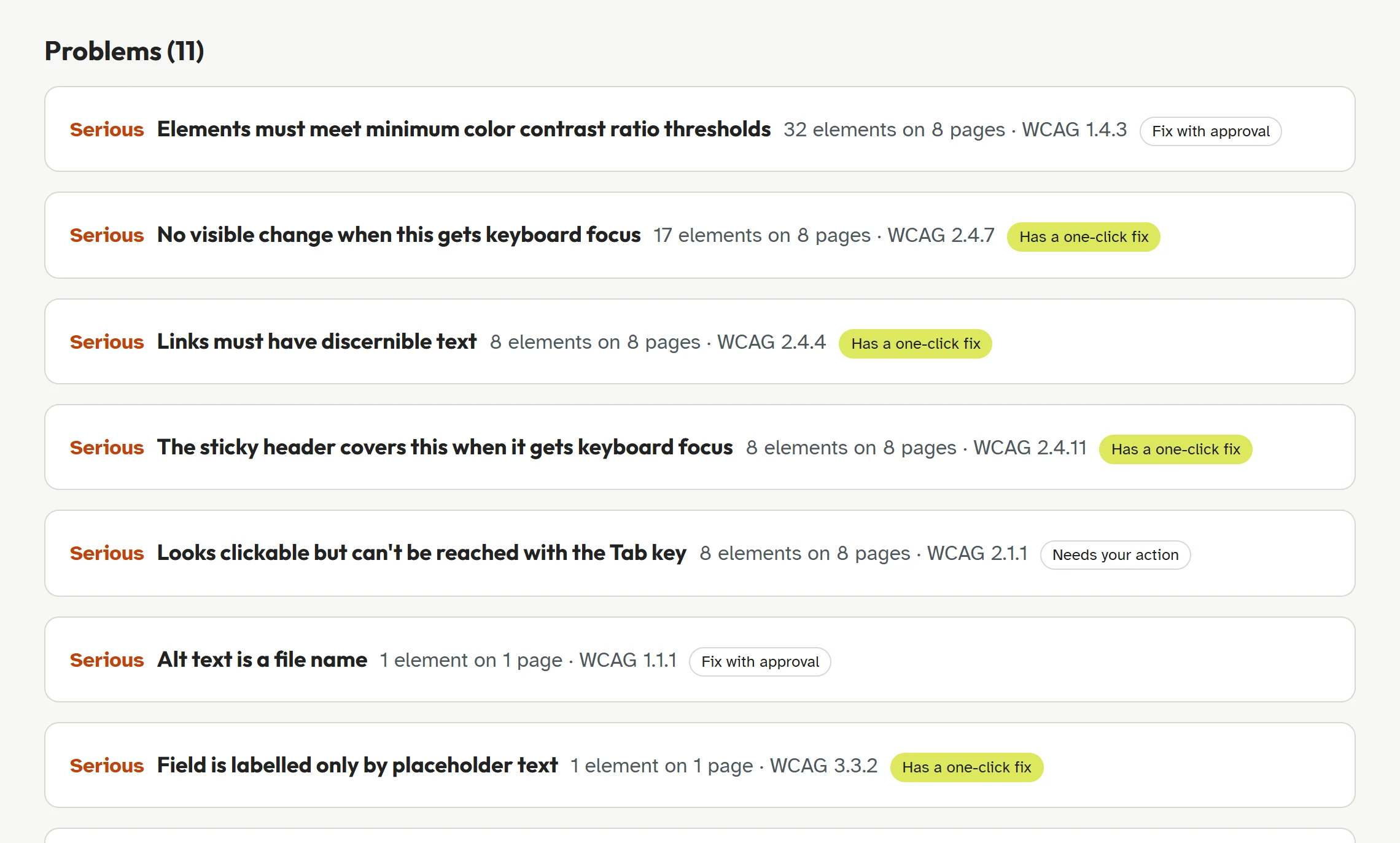
1. Text that's too faint to read (32 elements)
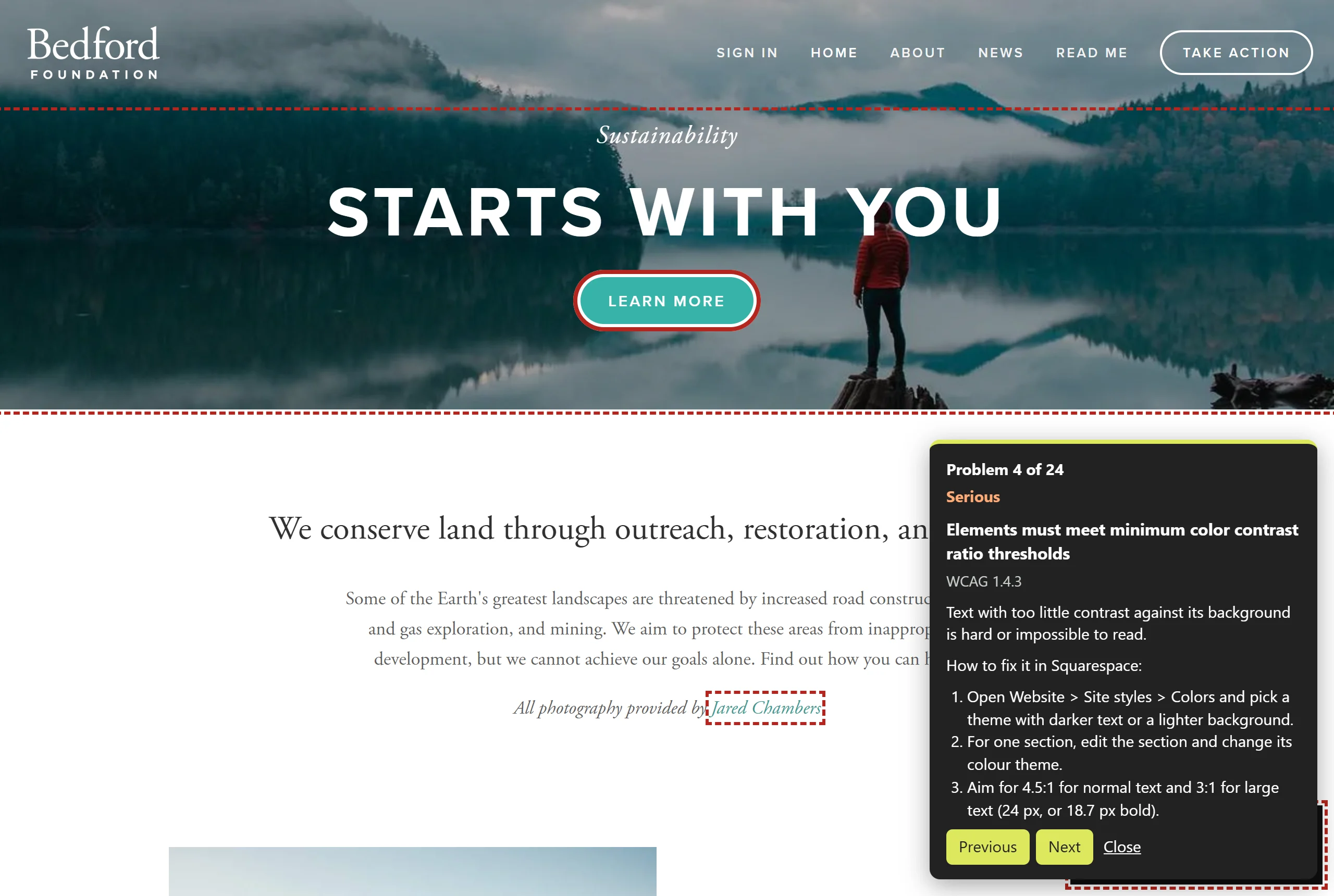
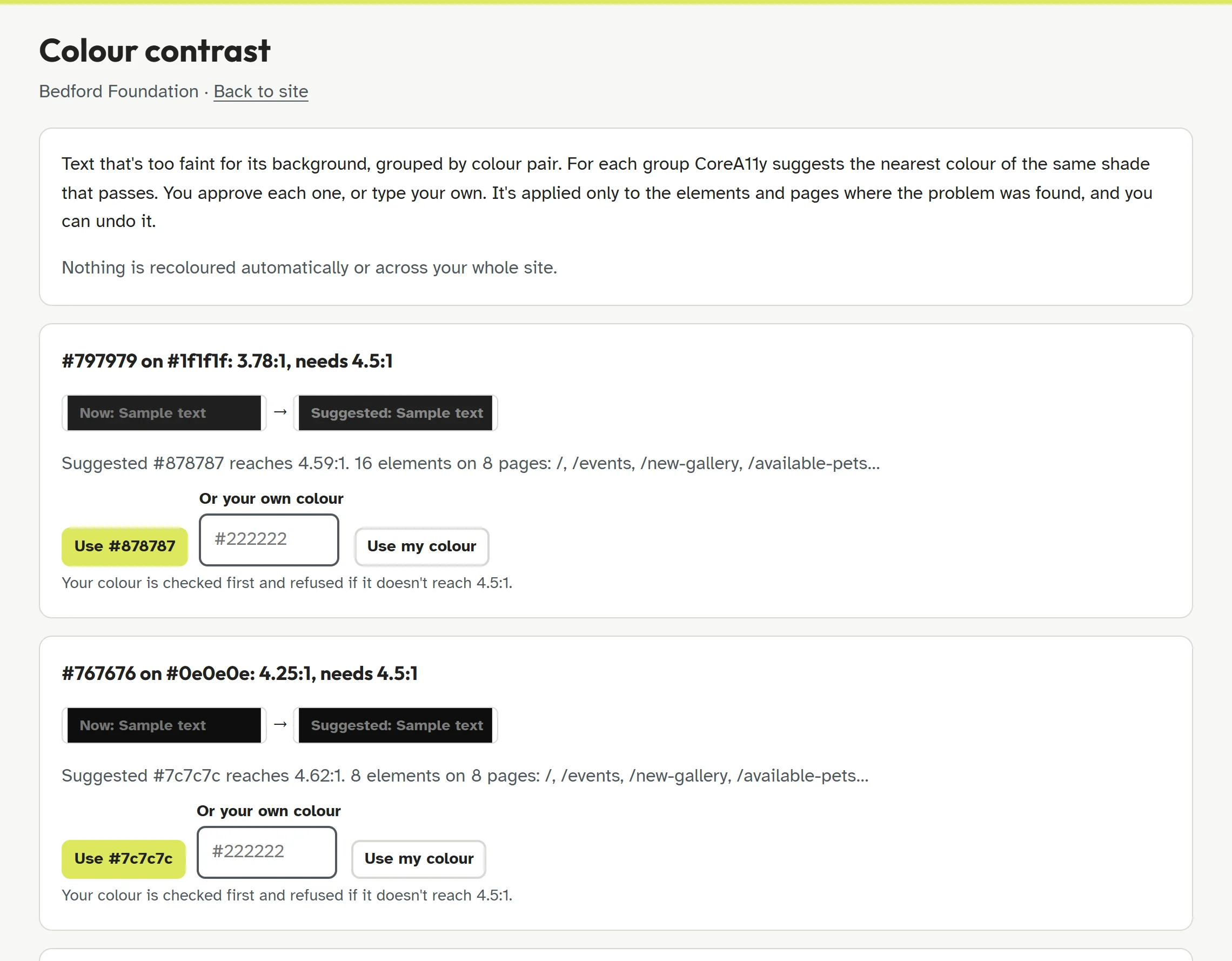
The most common problem was colour contrast. WCAG asks for a contrast ratio of at least 4.5:1 for normal text, and 3:1 for large text. The template had six colour pairs below that, including:
- grey text (#797979) on near-black (#1f1f1f) at 3.78:1, on all 8 pages;
- white text on the teal "Learn more" button (#27aa9f) at 2.86:1, on the home page;
- light grey text (#bdbdbd) on white at 1.87:1, less than half the contrast it needs.
Who it affects: visitors with low vision or colour blindness, older visitors, and anyone reading a phone in sunlight.
How to fix it in Squarespace: open your colour settings (Website › Site styles › Colors, or Design › Site Styles on older templates) and choose darker text or a stronger background for the affected colour theme. You can check a pair with any contrast checker before you save.
Changing a whole colour theme can affect sections you're happy with. CoreA11y's colour contrast screen takes a narrower route: for each failing pair it suggests the nearest shade that passes, and applies it only to the elements where the problem was found, after you approve it.
2. No visible keyboard focus (17 elements)
Many people move through a website with the Tab key instead of a mouse. As they do, the link or button they're on should be clearly outlined. On 17 links and buttons in the template, nothing visibly changed. That fails WCAG 2.4.7, Focus Visible.
Who it affects: keyboard users, including many people with motor disabilities, and screen reader users who can see the screen.
How to fix it in Squarespace: add a focus style in Custom CSS, for example:
a:focus-visible, button:focus-visible, input:focus-visible {
  outline: 3px solid #222222;
  outline-offset: 3px;
}
Pick an outline colour that stands out against both your light and dark sections. The :focus-visible part means the outline only appears for keyboard users, so mouse clicks look exactly as before.
3. Links with no name (8 elements)
Each page had a link made only of an icon, with no text a screen reader can announce. A screen reader user hears "link" and nothing else, so they can't tell where it goes. That fails WCAG 2.4.4, Link Purpose.
How to fix it: icon links in Squarespace's header and footer often can't be named from the editor. CoreA11y's "Names for icon links" fix gives each one a name from its address, such as "Instagram", and solved all 8.
4. The sticky header covers what you're on (8 elements)
The template's header stays fixed at the top as you scroll. When a keyboard user tabs down the page, the focused link can end up hidden behind it. WCAG 2.2 added a criterion for exactly this: 2.4.11, Focus Not Obscured.
How to fix it in Squarespace: in Custom CSS, add html { scroll-padding-top: 120px; }, using your header's height instead of 120px. Or turn off the fixed header in your header settings.
5. Looks clickable, but the Tab key can't reach it (8 elements)
One element on each page reacted to a mouse click but couldn't be reached from the keyboard. Anything a mouse user can do, a keyboard user must be able to do too (WCAG 2.1.1, Keyboard).
How to fix it: this one needs a person. Usually the answer is to make the element a real link or button: in Squarespace, use a Button block or add a link in the text editor instead of styling text to look clickable.
6. Alt text that's just a file name (1 image)
One image had a file name as its description, so a screen reader would read out something like "IMG_4021 dot jpg". Every meaningful image needs alt text that says what it shows (WCAG 1.1.1).
How to fix it in Squarespace: open the image block, find the alt text or image description field and write a short description. If the image is only decoration, CoreA11y's alt text screen lets you mark it as decorative instead.
Every problem, and how to fix it
| Problem | Elements | WCAG | Type of fix |
|---|---|---|---|
| Text with too little contrast | 32 on 8 pages | 1.4.3 | Fix with approval |
| No visible keyboard focus | 17 on 8 pages | 2.4.7 | One-click fix |
| Content outside landmarks | 17 on 8 pages | Best practice | One-click fix |
| Links with no name | 8 on 8 pages | 2.4.4 | One-click fix |
| Sticky header covers focus | 8 on 8 pages | 2.4.11 | One-click fix |
| Clickable but not reachable by keyboard | 8 on 8 pages | 2.1.1 | Needs your action |
| More than one banner landmark | 8 on 8 pages | Best practice | Needs your action |
| Landmarks without unique names | 8 on 8 pages | Best practice | One-click fix |
| Link text doesn't say where it goes | 2 on 1 page | 2.4.4 | One-click fix |
| Alt text is a file name | 1 on 1 page | 1.1.1 | Fix with approval |
| Field labelled only by placeholder text | 1 on 1 page | 3.3.2 | One-click fix |
"One-click fix" means a CoreA11y quick fix solves it as each page loads, without changing your Squarespace content. Turning the fix off removes it. "Fix with approval" means CoreA11y suggests the change and you approve it. "Needs your action" means a change in Squarespace itself.
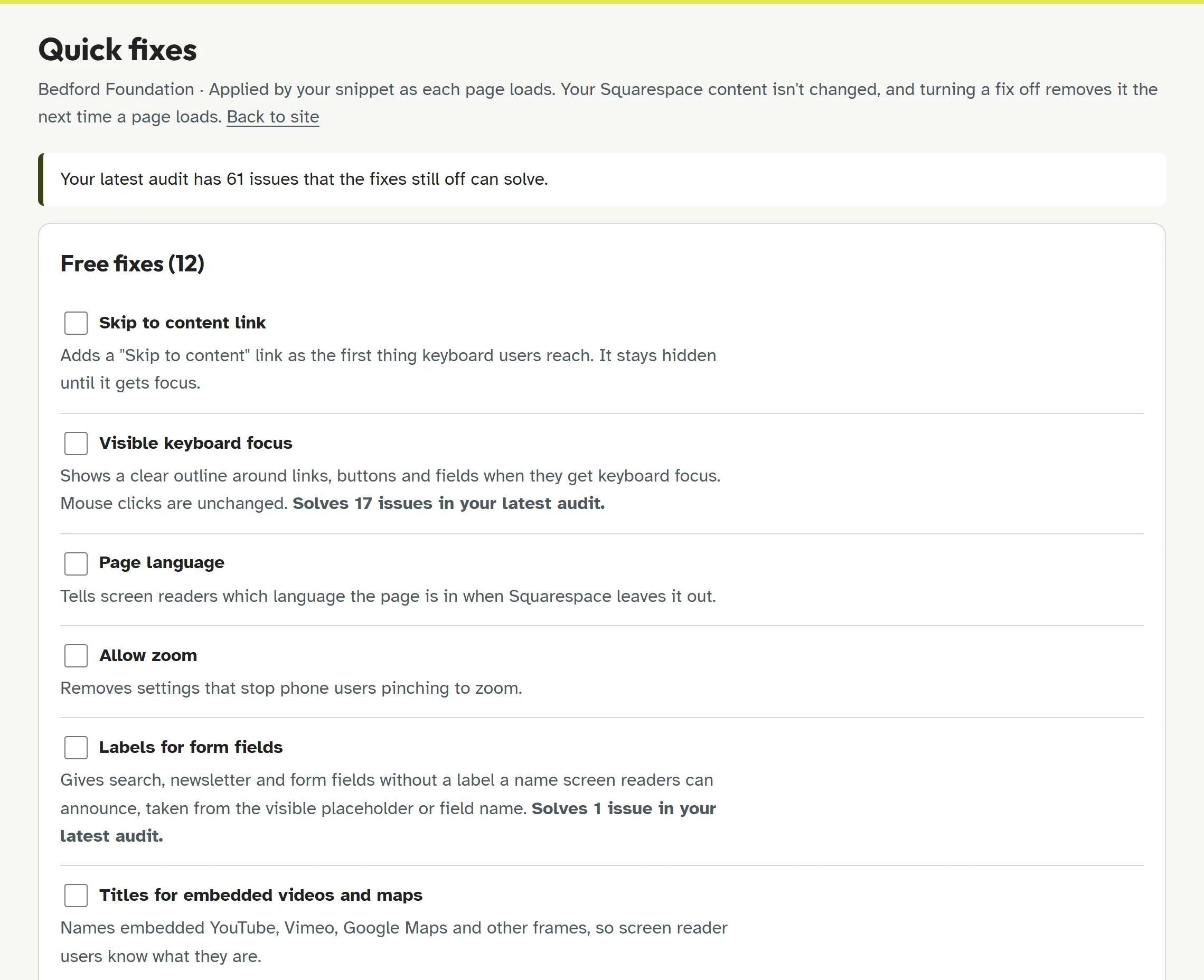
Quick fixes aren't an overlay. There's no toolbar or widget for visitors. The fixes change the page code your visitors receive, and each one can be checked and undone.
What automated checks can't tell you
Automated checks are fast and consistent, but they can't judge everything. They can tell that an image has alt text, not whether the text describes it well. They can tell that a page has headings, not whether the headings make sense in that order.
In this audit, CoreA11y flagged a few items as needing a human check, such as text over images where the contrast depends on the photo. For things like these, CoreA11y's guided checks walk you through a short series of questions, with a focus order map and a screen reader view, and record what you reviewed. We explain the difference in more depth in Automated vs. Manual Accessibility Auditing.
How to check your own Squarespace site
Your template will differ from Bedford, and your own content adds new things to check: images, buttons, forms and colours you chose. The quickest way to see where you stand:
- Create a free CoreA11y account and add your site's address.
- Paste your one-line snippet into Settings › Developer Tools › Code Injection › Header in Squarespace. Code Injection is included on the Core, Plus and Advanced plans, and on the older Business and Commerce plans.
- Run an audit from your browser. It checks up to 12 pages on the free plan and takes a few minutes.
- Read the report, open Show on page, and turn on the quick fixes that solve your issues.
See what your visitors run into
Free plan, no card needed. Your first audit takes a few minutes, and every fix can be undone.
Check your Squarespace siteFAQ
Is Squarespace accessible?
Squarespace gives you a reasonable starting point, and it has improved its templates over time. But a template on its own isn't fully accessible: the Bedford demo we tested had 110 automated issues on 8 pages. Your colours, images, buttons and forms add more. You need to check your own site.
Is Squarespace ADA compliant?
No platform can make a website ADA compliant on its own, because compliance depends on the finished site, including your content. US courts and the Department of Justice generally point to WCAG 2.1 or 2.2 level AA as the benchmark. Checking and fixing your site against WCAG is the practical way to reduce your risk.
Can I fix these problems without a developer?
Most of them, yes. Colour changes happen in Site Styles, alt text in the image block, and quick fixes are switched on from your CoreA11y account. A few, like keyboard-only problems, may need a small change in how a section is built.
Do accessibility overlays or widgets fix Squarespace sites?
Overlays add a toolbar for visitors but usually leave the underlying problems in place, and they have been named in many US lawsuits. Fixing the page itself is the safer route.
Which Squarespace plans does CoreA11y work with?
Plans that include Code Injection: Core, Plus and Advanced, or Business and Commerce on older plans. Squarespace doesn't offer Code Injection on its cheapest plan or during a free trial.
References
- W3C, "Web Content Accessibility Guidelines (WCAG) 2.2." w3.org
- W3C, "Understanding Success Criterion 1.4.3: Contrast (Minimum)." w3.org
- W3C, "Understanding Success Criterion 2.4.7: Focus Visible." w3.org
- W3C, "Understanding Success Criterion 2.4.11: Focus Not Obscured (Minimum)." w3.org
- W3C, "Understanding Success Criterion 2.1.1: Keyboard." w3.org
- W3C, "Understanding Success Criterion 2.4.4: Link Purpose (In Context)." w3.org
- Squarespace, Bedford template demo site. bedford-demo.squarespace.com