You ran an accessibility scan, fixed every error it flagged and got a perfect score. Your site is accessible now, right? Not necessarily. Automated scanners are fast, consistent and essential, but they can only test what a machine can measure. Many of the barriers that stop real people, like a confusing focus order, alt text that says nothing useful or an error message nobody can find, need a human to spot them.
This guide explains the limitations of automated accessibility scanners, what a manual WCAG audit checklist covers, and how to combine both into a practical website accessibility risk assessment.
Key takeaways
- In a UK government test, every tool combined found about 71% of known barriers, and the best single tool found about 40%.
- Deque's study of more than 2,000 audits found automation caught about 57% of issues by volume.
- Automation is best at detecting things that are missing. Humans are needed to judge whether what's there actually works.
- A good audit uses automation to cover breadth and manual testing to cover depth.
In this guide
What automated accessibility scanners catch well
Automated tools analyze your page's code and rendered styles against a set of rules. They're excellent at binary, measurable questions: is there an alt attribute, is this text's contrast ratio above 4.5:1, does this form field have a label, is the page language set?
Those questions matter, because the most common errors are exactly these. The 2026 WebAIM Million report found that six detectable error types accounted for about 96% of all errors on the top one million home pages: low-contrast text, missing alt text, missing form labels, empty links, empty buttons and missing document language. A scanner can find every instance of these across thousands of pages in minutes, which no human team could match.
Automated accessibility scanner limitations
The catch is coverage. Two of the most-cited studies measured it in different ways:
The UK Government Digital Service built a deliberately broken page with 143 accessibility barriers and ran a set of popular automated testing tools against it. Combined, the tools found about 71% of the barriers. The best single tool found about 40%, and 29% of the barriers weren't caught by any tool. Deque, which develops the axe-core engine, analyzed real-world audits and found that automated testing identified about 57% of issues by volume. Deque points out that a few very common issue types, such as color contrast, make up a large share of all issues found.
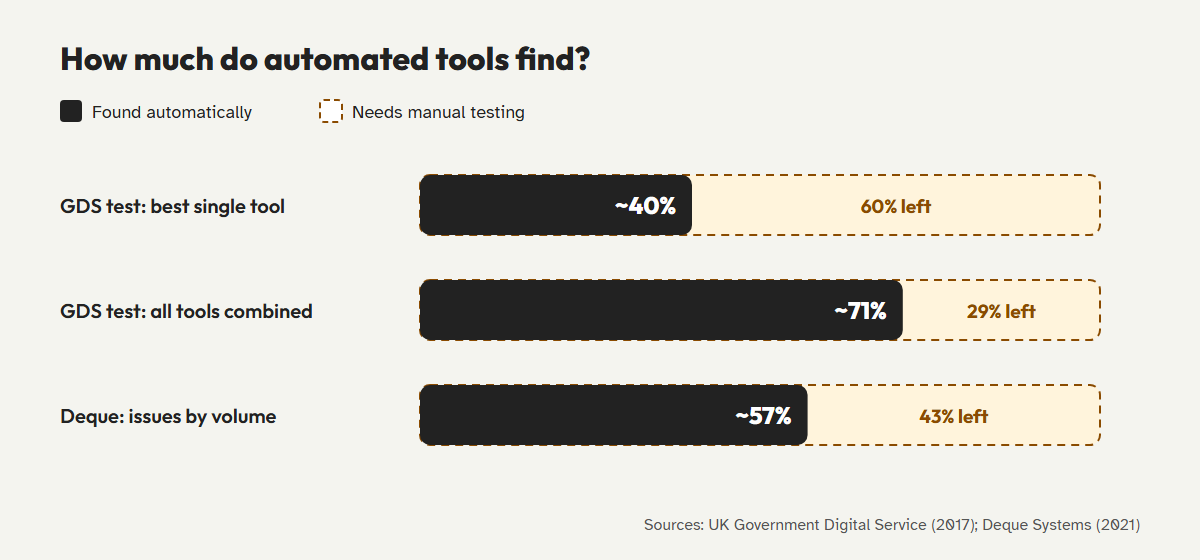
Both studies point to the same conclusion. Automation is necessary, but it isn't enough. Here's what typically falls into the gap:
| Question | Automated scan | Manual review |
|---|---|---|
| Does this image have alt text? | Yes | Yes |
| Is the alt text accurate and useful? | No | Yes |
| Does the text meet contrast ratios? | Mostly, except text over images and gradients | Yes |
| Can every task be completed with a keyboard? | No | Yes |
| Is the focus order logical? | No | Yes |
| Does a modal trap or lose focus? | No | Yes |
| Do headings describe their sections? | Partly: it checks they exist | Yes |
| Are error messages clear and announced? | No | Yes |
| Are captions accurate? | No | Yes |
| Does the page work at 400% zoom? | No | Yes |
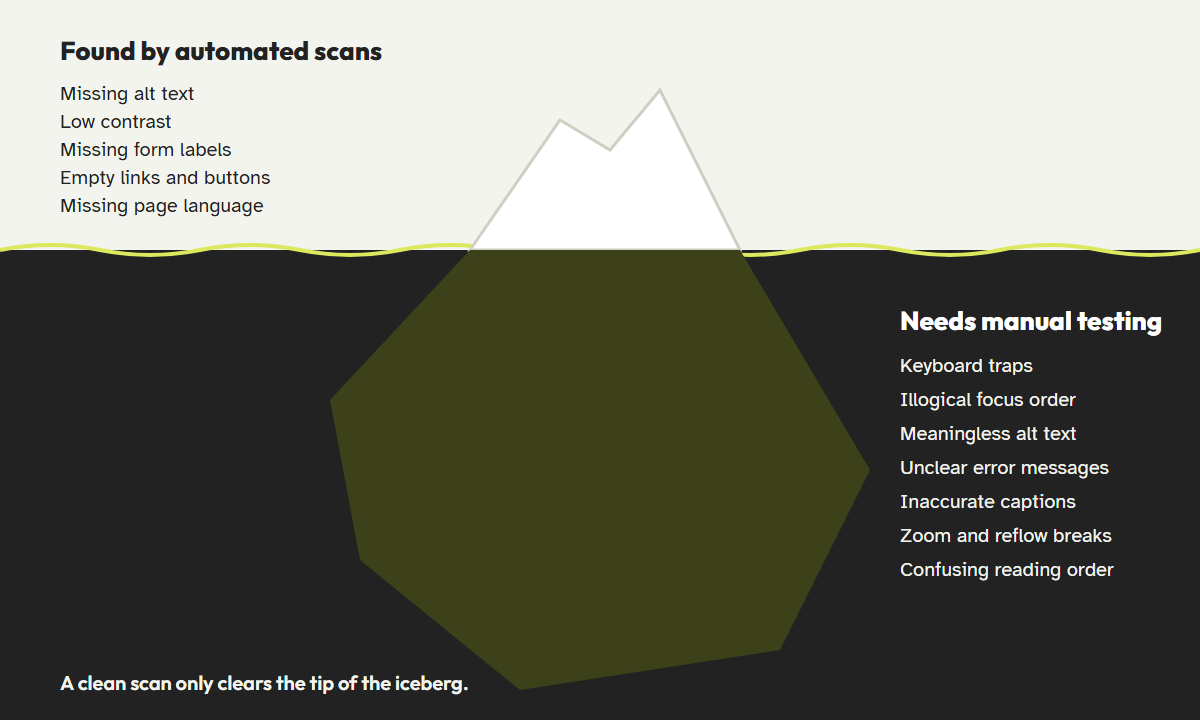
Scanners also produce false confidence in the other direction. An image with alt="image", a button labelled "button" or a link that says "click here" usually passes the automated check while failing the person using it. A perfect score means the scanner found nothing it knows how to find. It doesn't mean the site is accessible.
A practical manual WCAG audit checklist
Manual testing doesn't have to mean a weeks-long consultant engagement. Start with the checks below on your most important templates. Each one takes minutes, and together they catch the barriers scanners miss most often.
- KeyboardComplete every key task without a mouse. Sign up, search, add to cart, check out and submit the contact form.
- FocusWatch the focus indicator the whole way. It should always be visible, move in a logical order and never hide behind sticky elements.
- DialogsOpen every popup, menu and modal. Focus should move in, stay in, close with Escape and return to its trigger.
- Screen readerListen to the page with NVDA or VoiceOver. Check that headings, landmarks, buttons and form fields are announced clearly.
- ImagesRead each alt text without looking at the image. Does it communicate what the image is there to say?
- LinksPull up a list of links in your screen reader. Does each one make sense on its own?
- FormsSubmit forms with mistakes. Are errors described in text, next to the field and announced?
- ZoomZoom to 200% and 400%. Nothing should overlap, get cut off or require horizontal scrolling.
- MediaWatch videos with sound off. Are captions present, accurate and synchronized?
- MotionFind anything that moves, autoplays or times out. Can it be paused, stopped or extended?
Want the full version? CoreA11y pairs its automated scan with an interactive 32-step manual guide. It walks you through each check in order, explains what to look for in plain language and records your results, so you finish with documented evidence instead of scattered notes.
How to run a website accessibility risk assessment
For businesses, the question usually isn't "Are we 100% accessible?" It's "Where are we most exposed, and what do we fix first?" A simple risk assessment answers that by combining automated breadth with manual depth.
- Map your critical user journeys.List the tasks that matter most to customers and the business, such as buying, booking, signing up, contacting support or applying for a job.
- Scan everything automatically.Run a site-wide automated scan to find high-volume, template-level problems, and fix them first.
- Test critical journeys manually.Apply the manual checklist to each journey from step 1. Blockers here are your highest risk.
- Score each issue.Rate each issue by severity (does it block the task?), reach (how many pages or users?) and exposure (is it on a revenue or legal-sensitive page such as checkout or a login?).
- Fix, document and schedule re-tests.Keep a dated log of what you found and fixed. Set re-test triggers for theme changes, new plugins and major content updates.
That record matters. With more than 5,000 U.S. digital accessibility lawsuits filed in 2025, according to UsableNet, a documented history of testing and remediation shows a good-faith effort in a way that a scanner score alone can't.
What to know about axe-core WordPress plugins
If you've searched for an axe-core WordPress plugin, you've likely found that axe-core is an open-source accessibility testing engine developed by Deque. It powers many popular tools, including the accessibility audits in Google Lighthouse. It's widely respected because it's designed to avoid false positives. If axe-core reports an issue, it's very likely real.
That strength is also a reminder of its scope: axe-core is an automated engine, so it shares the limits above. When you evaluate any WordPress accessibility plugin, whatever engine it uses, ask these questions:
- Does it scan the whole site, or only the page you're editing?
- Does it explain issues in language your content team understands?
- Does it fix issues in the markup, or only report them?
- Does it guide you through manual testing, or stop at the automated results?
- Can you export results as documentation for clients, managers or legal teams?
Close the blind spots in your audit
CoreA11y combines automated WCAG 2.2 scanning, source-level fixes and a guided 32-step manual review, so you can see the whole picture and prove your progress.
Start your CoreA11y auditFix keyboard navigation firstFrequently asked questions
What percentage of accessibility issues can automated tools find?
It depends on how you count. A UK government test found the best single tool caught about 40% of known barriers, and all tools combined caught about 71%. Deque's study of real audits found automated tests identified about 57% of issues by volume.
Is a 100 Lighthouse accessibility score enough?
No. A perfect Lighthouse score means none of its automated checks failed. It doesn't test keyboard use, focus order, content quality or many other WCAG criteria.
How often should I run a manual accessibility audit?
Test critical journeys at least once a year and after any major change, such as a new theme, redesign, checkout update or new plugin. Run automated scans continuously or on a regular schedule.
Do I need a screen reader to do manual testing?
For a full audit, yes. NVDA is free on Windows and VoiceOver is built into Mac and iPhone. You can still do a lot with keyboard, zoom and visual checks before you learn a screen reader.
References
- UK Government Digital Service, "What we found when we tested tools on the world's least-accessible webpage," 2017. accessibility.blog.gov.uk
- Deque Systems, "Automated Testing Study Identifies 57 Percent of Digital Accessibility Issues," 2021. deque.com
- Deque Systems, "The Automated Accessibility Coverage Report." deque.com
- Deque Systems, axe-core on GitHub. github.com/dequelabs/axe-core
- Chrome for Developers, "Lighthouse accessibility score." developer.chrome.com
- W3C WAI, "Website Accessibility Conformance Evaluation Methodology (WCAG-EM)." w3.org
- W3C WAI, "Selecting Web Accessibility Evaluation Tools." w3.org
- WebAIM, "The WebAIM Million: 2026 report." webaim.org/projects/million
- UsableNet, "ADA Web Lawsuit Trends for 2026: What 2025 Filings Reveal." blog.usablenet.com