Black Friday lands on November 27 this year, and Cyber Monday follows on November 30. For most Shopify merchants, the next five weeks bring more traffic, more first-time visitors and more pressure on checkout than the rest of the year combined. If a shopper can't find the size selector with a keyboard or a screen reader announces your sale price as nonsense, that sale is gone.
This guide shows you how to make your Shopify store accessible in a focused holiday sprint: what to fix first, how to edit Shopify Liquid for WCAG safely, and why ADA compliance for e-commerce websites deserves a place on your pre-holiday checklist.
Key takeaways
- E-commerce sites were the target of about 70% of U.S. ADA web lawsuits in 2025.
- Most store barriers sit in a few theme files: product cards, product forms, the cart drawer and header icons.
- Always duplicate your live theme before you edit code, and test in the preview.
- A five-week plan is enough to fix the highest-impact issues before Black Friday.
In this guide
Why ADA compliance for e-commerce websites matters before the holidays
Online stores are the most frequent target of web accessibility lawsuits. According to UsableNet's 2025 year-end analysis, e-commerce accounted for nearly 70% of all ADA web lawsuits, out of more than 5,000 digital accessibility cases filed that year. If you sell to customers in the European Union, the European Accessibility Act has also applied to many online stores since June 2025.
The commercial case is just as strong. Disabled shoppers and their families are a large market, and the barriers that block them often frustrate everyone else too. Think of tiny tap targets on mobile, low-contrast sale badges, or a cart drawer that traps focus and won't close. Fixing them before your biggest traffic weekend means more people can finish checking out.
The five-week holiday accessibility sprint
You don't need to rebuild your theme. Work through the templates shoppers actually use on the way to checkout, in order of impact.
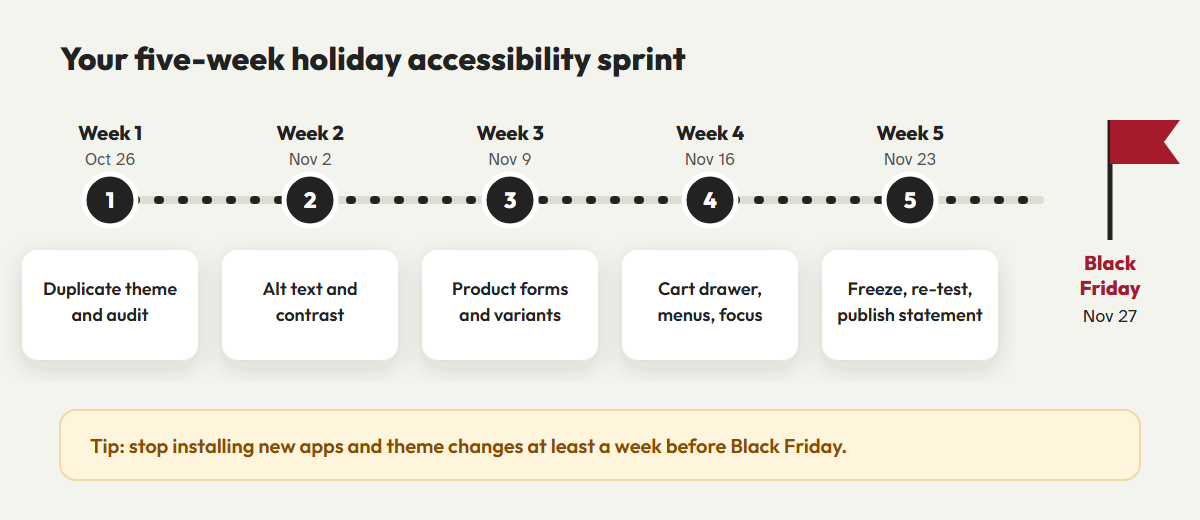
Week 1: Back up your theme and audit
In your Shopify admin, go to Online Store, then Themes. Open the menu next to your live theme and choose Duplicate. Do all your work in the copy, then publish it once you've tested it. Next, run an automated scan on five pages: home, a collection, a product with variants, the cart and a content page. Then try to buy something using only your keyboard. Write down every place you get stuck.
Week 2: Images, alt text and contrast
Open each best-selling product, select an image and add alt text in the media editor. Good product alt text describes what a shopper needs to know, for example "Navy merino crew-neck sweater, ribbed cuffs, shown folded." Avoid generic text like "product image." Then check your sale badges, "Sold out" labels and button text against a 4.5:1 contrast ratio. Holiday promo colors are often the worst offenders.
Week 3: Product forms and variant pickers
Size and color swatches are where many stores fail. Each option needs a visible group label, each swatch needs a text name rather than a color alone, and the selected state has to be announced to screen readers. Price changes after a variant is selected should be announced too.
Week 4: Cart drawer, navigation and focus
When the cart drawer or a quick-view modal opens, keyboard focus should move into it, stay inside it while it's open and return to the button that opened it when it closes. The Escape key should close it. Check that your mega-menu opens with Enter or Space, that a skip link appears on the first Tab press, and that focus is always visible.
Week 5: Freeze, re-test and publish
Stop adding new apps and theme changes at least a week before Black Friday. Re-run your scan, repeat the keyboard checkout and test once with a screen reader. Then publish an accessibility statement in your footer with a contact method for anyone who hits a problem.
How to edit Shopify Liquid for WCAG
To open your theme code, go to Online Store, then Themes, open the menu on your duplicated theme and select Edit code. Snippet and section names vary by theme, but the patterns below apply to almost every theme. Use the search box in the code editor to find the right file.
Before you paste any code: work on a duplicate theme, change one file at a time and preview after each change. If you're not comfortable editing Liquid, share these examples with your developer.
1. Set the page language
Find the opening <html> tag in layout/theme.liquid and make sure it outputs the shopper's current language:
<html lang="{{ request.locale.iso_code }}">2. Output real alt text on product images
Use the alt text you wrote in the admin, and fall back to the product title if it's empty:
{%- assign img_alt = image.alt | default: product.title -%}
{{ image | image_url: width: 900 | image_tag: alt: img_alt, loading: 'lazy' }}
3. Make sale prices make sense to screen readers
Visually, a crossed-out price next to a red price is clear. Read aloud, "$80 $60" isn't. Add hidden labels using the visually-hidden class your theme already includes. It might be called visually-hidden or sr-only.
{%- if product.compare_at_price > product.price -%}
  <span class="visually-hidden">Sale price</span>
  <span class="price--sale">{{ product.price | money }}</span>
  <span class="visually-hidden">Regular price</span>
  <s>{{ product.compare_at_price | money }}</s>
{%- else -%}
  {{ product.price | money }}
{%- endif -%}
4. Group variant options with a fieldset
Native radio buttons inside a fieldset give you keyboard support, a group label and an announced selected state for free. You can still style the labels to look like swatches.
{%- for option in product.options_with_values -%}
  <fieldset class="variant-group">
    <legend>{{ option.name }}</legend>
    {%- for value in option.values -%}
      {%- assign input_id = section.id | append: '-' | append: option.position | append: '-' | append: forloop.index -%}
      <input type="radio" id="{{ input_id }}" name="{{ option.name | escape }}"
        value="{{ value | escape }}" {% if option.selected_value == value %}checked{% endif %}>
      <label for="{{ input_id }}">{{ value }}</label>
    {%- endfor -%}
  </fieldset>
{%- endfor -%}
5. Label icon-only buttons and announce cart updates
Search, account, cart and close buttons are often just icons. Give each one an accessible name, and add a polite live region so "Added to cart" is announced when the count changes:
<button type="button" class="header__icon" aria-label="Open search">
  {% render 'icon-search' %}
</button>
<a href="{{ routes.cart_url }}" class="header__icon">
  {% render 'icon-cart' %}
  <span class="visually-hidden">Cart,</span>
  <span id="cart-count" aria-live="polite">{{ cart.item_count }} items</span>
</a>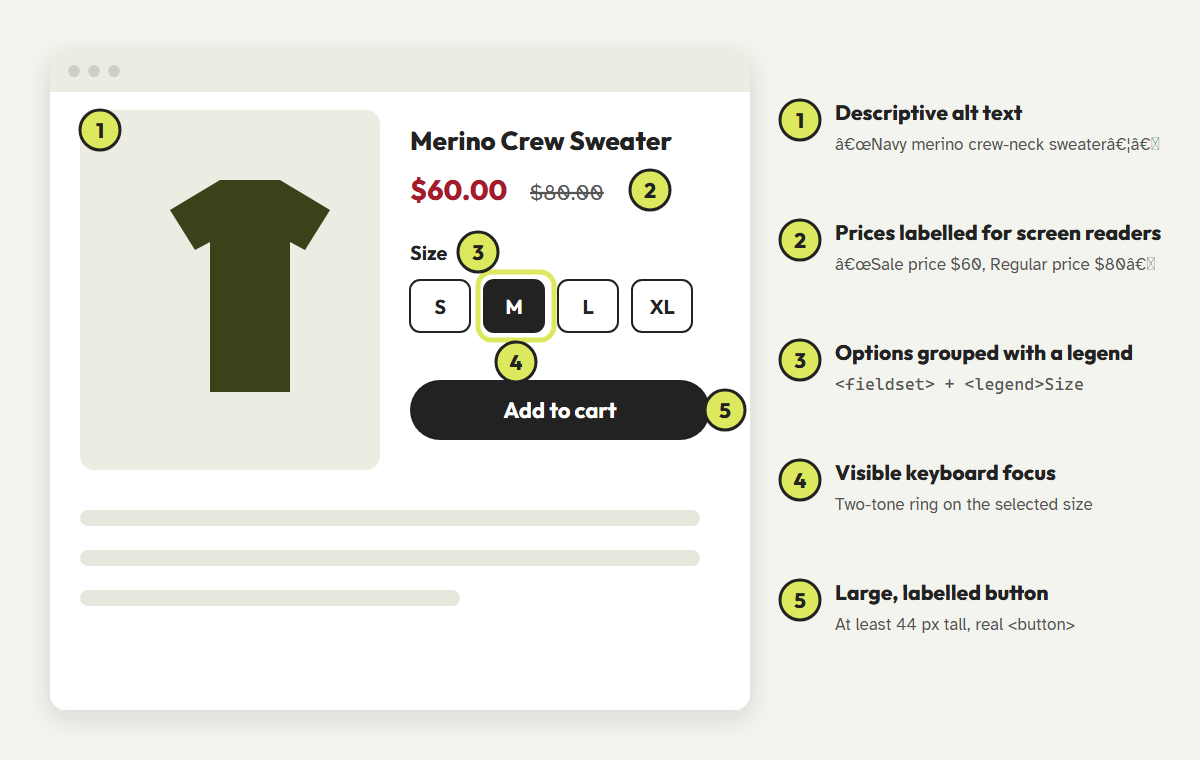
6. Restore visible focus
Search your CSS assets for outline: none or outline: 0. If the theme removes the focus outline without replacing it, add a clear focus style instead:
:focus-visible {
  outline: 3px solid #1a1a1a;
  outline-offset: 3px;
  box-shadow: 0 0 0 6px #ffffff;
}
Shopify's own theme accessibility best practices cover many more patterns, including dropdowns, slideshows, modals and touch targets. They're worth bookmarking if you or your developer maintain a custom theme.
7. Don't forget your holiday add-ons
Seasonal changes often cause the newest barriers. Before Black Friday, check these with a keyboard and a screen reader too:
- Countdown timers. Make sure they don't announce every second to screen readers. Mark the ticking numbers with
aria-hidden="true"and add a static text version, such as "Sale ends Monday at midnight." - Email popups and spin-to-win wheels. They need a visible, labelled close button, must close with Escape and shouldn't appear again on every page.
- Announcement bars. Scrolling promo bars need a pause button, and their text must meet contrast requirements against seasonal colors.
- Gift options and upsells. New checkboxes, message fields and product recommendations in the cart drawer need labels and keyboard support like everything else.
What to look for in a Shopify accessibility app
Search the Shopify App Store for "accessibility" and you'll find dozens of options. Many are overlay widgets that add a toolbar on top of your store without changing your theme. UsableNet counted roughly 1,400 lawsuits in 2025 against sites that already had a widget installed. When you compare apps, look for these four things:
- Source-level fixes. The app should change or flag the Liquid and markup your store serves, not just layer a toolbar on top.
- Plain-language explanations. You should understand what each issue is and why it matters without reading the WCAG specification.
- Manual testing guidance. Automated scans miss a large share of issues, so a good app guides you through the keyboard and screen reader checks too.
- Honest claims. Be wary of any app that promises "100% compliance" or "lawsuit protection." The FTC has already fined one vendor for claims like that.
CoreA11y for Shopify is coming
We're bringing CoreA11y's source-level fixes, plain-language guidance and manual testing walkthroughs to Shopify. Join the waitlist for early access and launch pricing.
Join the Shopify waitlistFrequently asked questions
Are Shopify themes accessible by default?
Shopify's free themes are built with accessibility in mind, but customizations, third-party apps, custom sections and your own content can all introduce barriers. Test the store your customers actually see.
Do small Shopify stores get ADA lawsuits?
Yes. Lawsuits target stores of every size, and many plaintiff firms use automated scans to find targets. A smaller store isn't automatically exempt.
Will editing Liquid break my store?
Not if you work on a duplicated theme and preview every change before publishing. Keep the original theme unpublished as a backup until you're confident in the new one.
Is it too late to fix accessibility before Black Friday?
No. Five weeks is enough to fix alt text, contrast, labels, focus and the cart drawer, which together cover a large share of the barriers shoppers hit.
This article is general information, not legal advice. Shopify, Liquid and theme file names change over time, so check your own theme's documentation before you edit code.
References
- UsableNet, "ADA Web Lawsuit Trends for 2026: What 2025 Filings Reveal." blog.usablenet.com/ada-web-lawsuit-trends-2026
- Shopify, "Accessibility best practices for Shopify themes." shopify.dev
- Shopify, "Lighthouse CI for themes." shopify.dev
- Shopify Liquid reference, "request" object (locale). shopify.dev/docs/api/liquid/objects/request
- WebAIM, "The WebAIM Million: 2026 report." webaim.org/projects/million
- W3C, "Web Content Accessibility Guidelines (WCAG) 2.2." w3.org/TR/WCAG22
- W3C WAI-ARIA Authoring Practices, "Dialog (Modal) Pattern." w3.org/WAI/ARIA/apg/patterns/dialog-modal
- European Commission, "The EU becomes more accessible for all," 2025. commission.europa.eu
- U.S. Federal Trade Commission, "FTC Approves Final Order Requiring accessiBe to Pay $1 Million," April 2025. ftc.gov